
Use your invited account and build. If a named control is absent, check your app version and confirmed beta access before continuing.
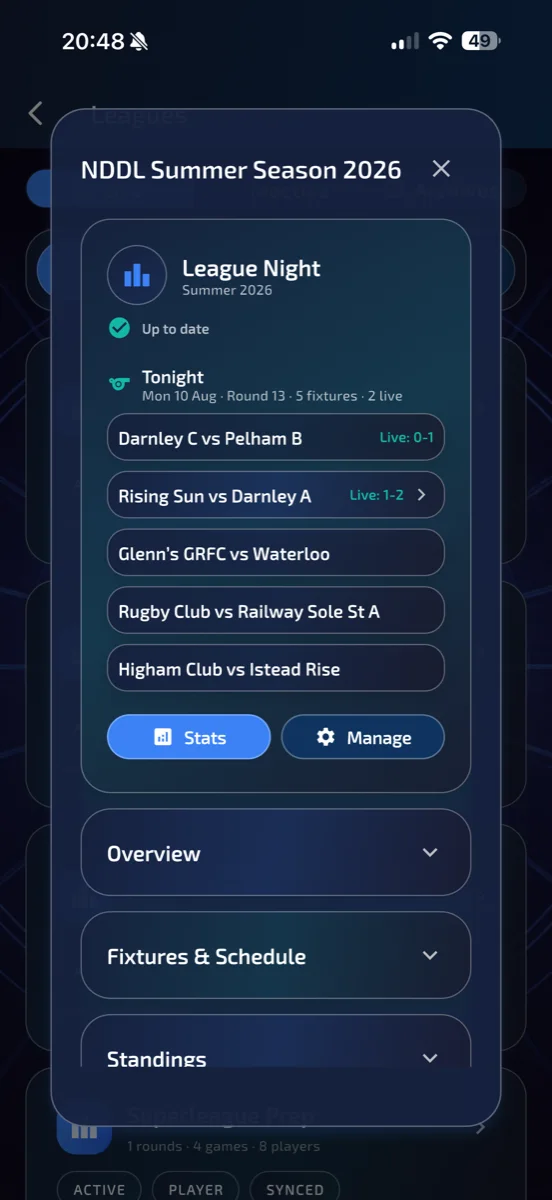
Check your scoring permission
Confirm your role with the organiser and use the authorised account. Open the league's fixture list and select a fixture involving your team. Check the opponents and date before starting.
Prepare and score the games
Follow the fixture's player selection and running order. Score each visit and complete the checkout prompts. Return to Match or follow the next-game action offered by the current format.
Review the result and tap Finish Match
Check the completed games and final score on Match, then tap Finish Match. The last game's checkout alone does not finalise a synced team fixture. If you leave beforehand, reopen Match on the same device to resume the saved session.
Check the upload confirmation
For a synced fixture, wait for the uploaded confirmation. If the result is saved locally or upload is unverified, retain the app data and reconnect with the same account so sync can recover. Do not score a duplicate fixture. Check the completed fixture report after upload; contact beta support if it remains pending.
Include your device, operating system, app version, account email and steps taken in a beta bug report.