
Captured on staging organiser and player simulators on 11 September 2026, app version 2.2.1. The Plough Friday Open, The Plough and the player names shown are fictional pub and player names. This walkthrough is the Round Robin Only path with two boards and one group. The old member-assignment captures have been withdrawn while the corrected paired-tablet flow is recaptured. Knockout, groups-to-knockout, Send to TV and mid-event field changes are not certified here.
01 · Create · Tournaments
Open Tournaments and create the night
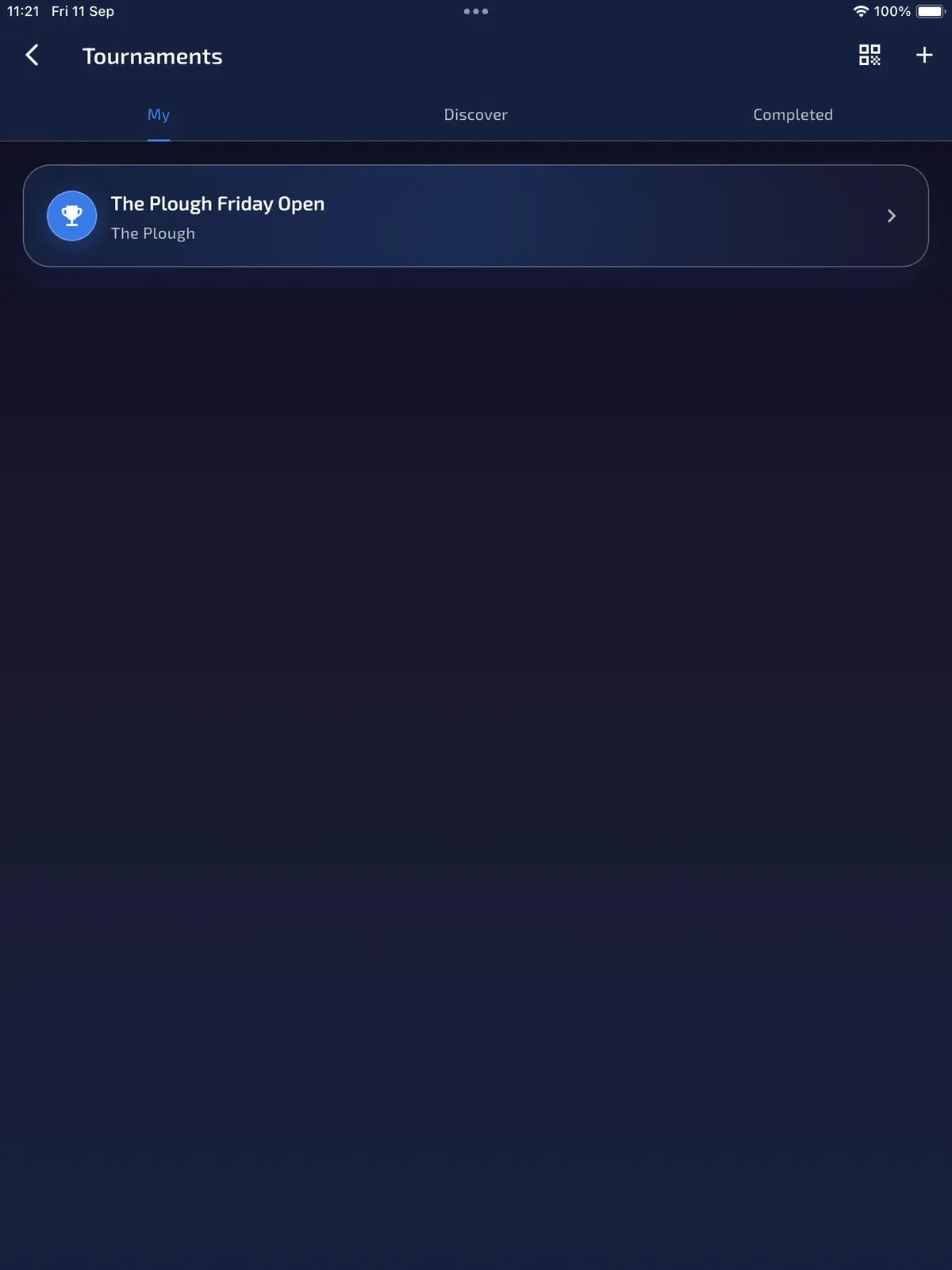
ResultYou reach the organiser tournament list and its Create action.
Round-robin nights start from Home → Tournaments, not from Leagues. Stay on My. The plus control in the header opens Create Tournament.
- Open Home → Tournaments.
- Stay on My so you are looking at events you organise, not Discover or Completed.
- Tap the plus control to create a new event.
02 · Create · Basics
Name the venue, boards and who can join
ResultThe draft knows the pub, the board count and whether players can find it.
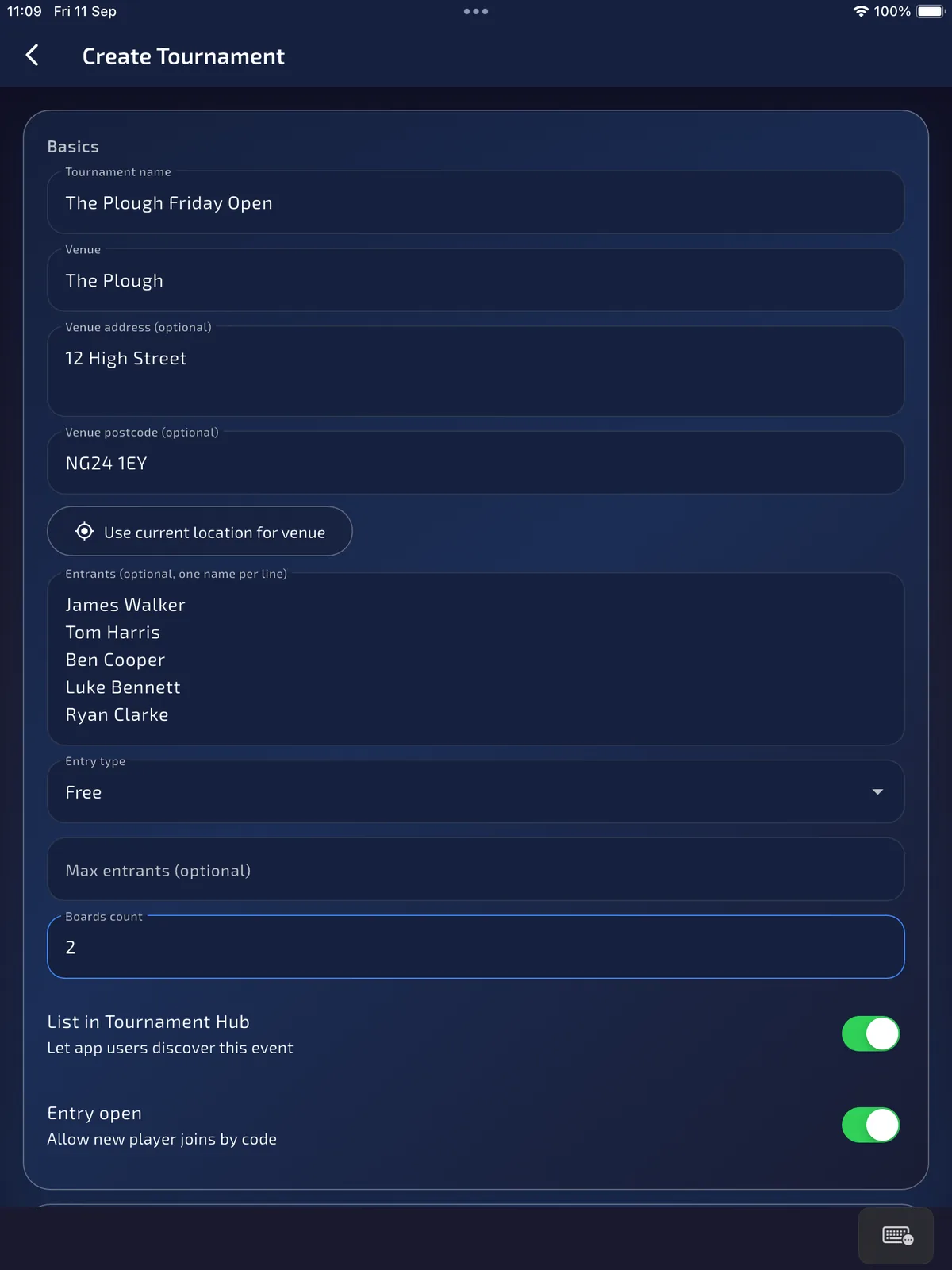
Basics is the identity of the night. This walkthrough uses The Plough Friday Open at The Plough, 12 High Street, NG24 1EY, with two boards, free entry, hub listing on and entry open. Optional names on the form are a starting list only; they are not the live field until they appear on Entrants.
- Enter the tournament name and venue. Display names use title case.
- Add the street and postcode if players will find you on Discover Hub.
- Type optional names one per line if you already know who is coming. You can also add them later from the roster.
- Leave Entry type on Free unless your build offers paid entry you have agreed to use.
- Set Boards count to the number of oches you will actually run. This night uses 2.
- Turn on List in Tournament Hub and Entry open if players should join from Discover or by code.
03 · Create · Format
Choose Round Robin Only and set one group
ResultThe saved format is round robin with the group count you typed, not a knockout.
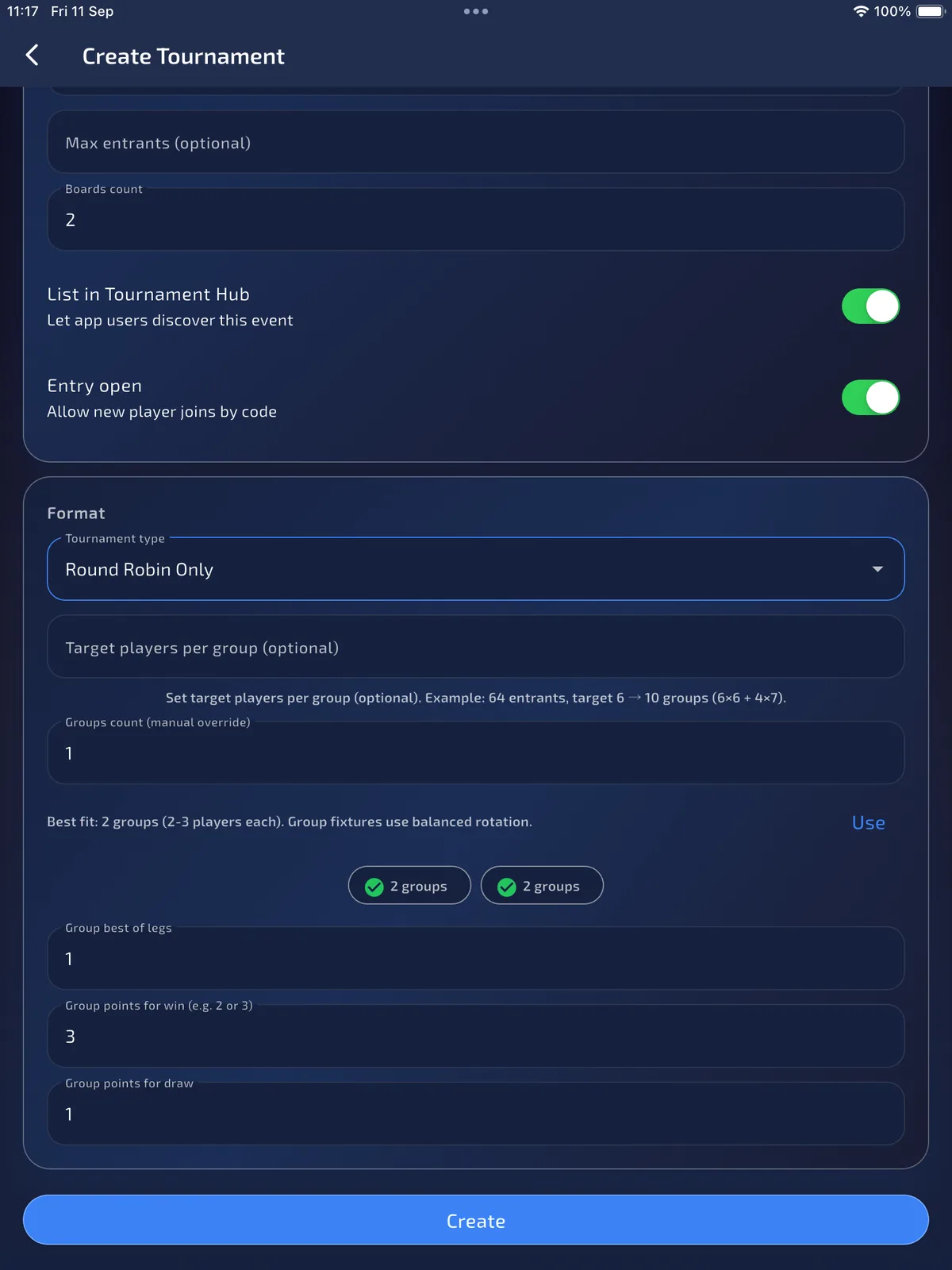
Scroll to Format and set Tournament type to Round Robin Only. This walkthrough is that path only. Groups-to-knockout and knockout formats are not certified here, and Round Robin Only does not grow a Bracket tab later.
Groups count is what Start Tournament uses. Best-fit chips may still suggest 2 groups while the box says 1. Leave the box on the count you want. This night uses 1 group, best of 1, 3 points for a win and 1 for a draw.
- Set Tournament type to Round Robin Only.
- Type Groups count (manual override) as 1 unless you really want more than one round-robin pool.
- Do not tap a Best-fit chip unless you intend to change that saved count.
- Set Group best of legs. This night uses 1 so one 501 decides each pairing.
- Check Group points for win and draw, then tap Create.
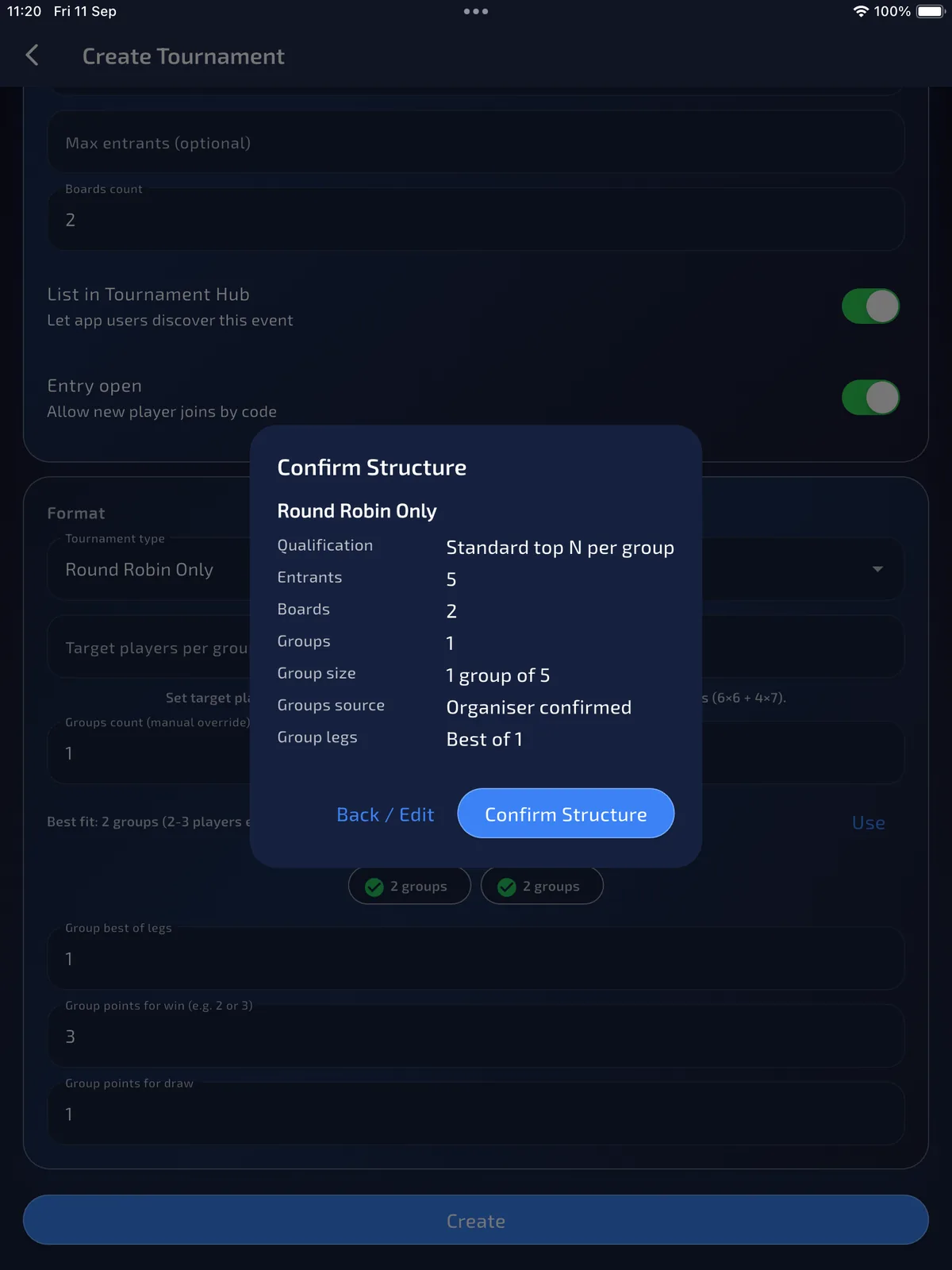
Qualification on the next dialog can still read Standard top N per group. For Round Robin Only that label does not generate a knockout.
04 · Create · Confirm Structure
Confirm Structure at create does not seed fixtures
ResultYou accept the draft summary. Fixtures are still not written.
Create shows Confirm Structure before the event exists. This capture shows Round Robin Only, 5 names, 2 boards, 1 group of 5 and best of 1. Confirming here only accepts that preview. There is no Generate Fixtures control. Start Tournament is the write that builds the matches, and it uses the checked-in field at that later moment, not this create-time list.
- Read Groups and Group size. They should match the Groups count you saved, not a leftover best-fit chip.
- Read Qualification as a leftover label on this screen. Round Robin Only still does not create a knockout.
- Tap Confirm Structure to continue, or Back / Edit to change the format.
Watch this step
05 · Create · Codes
Copy the codes, then open the event you just made
ResultThe draft exists. Join and viewer codes are unique to this night.
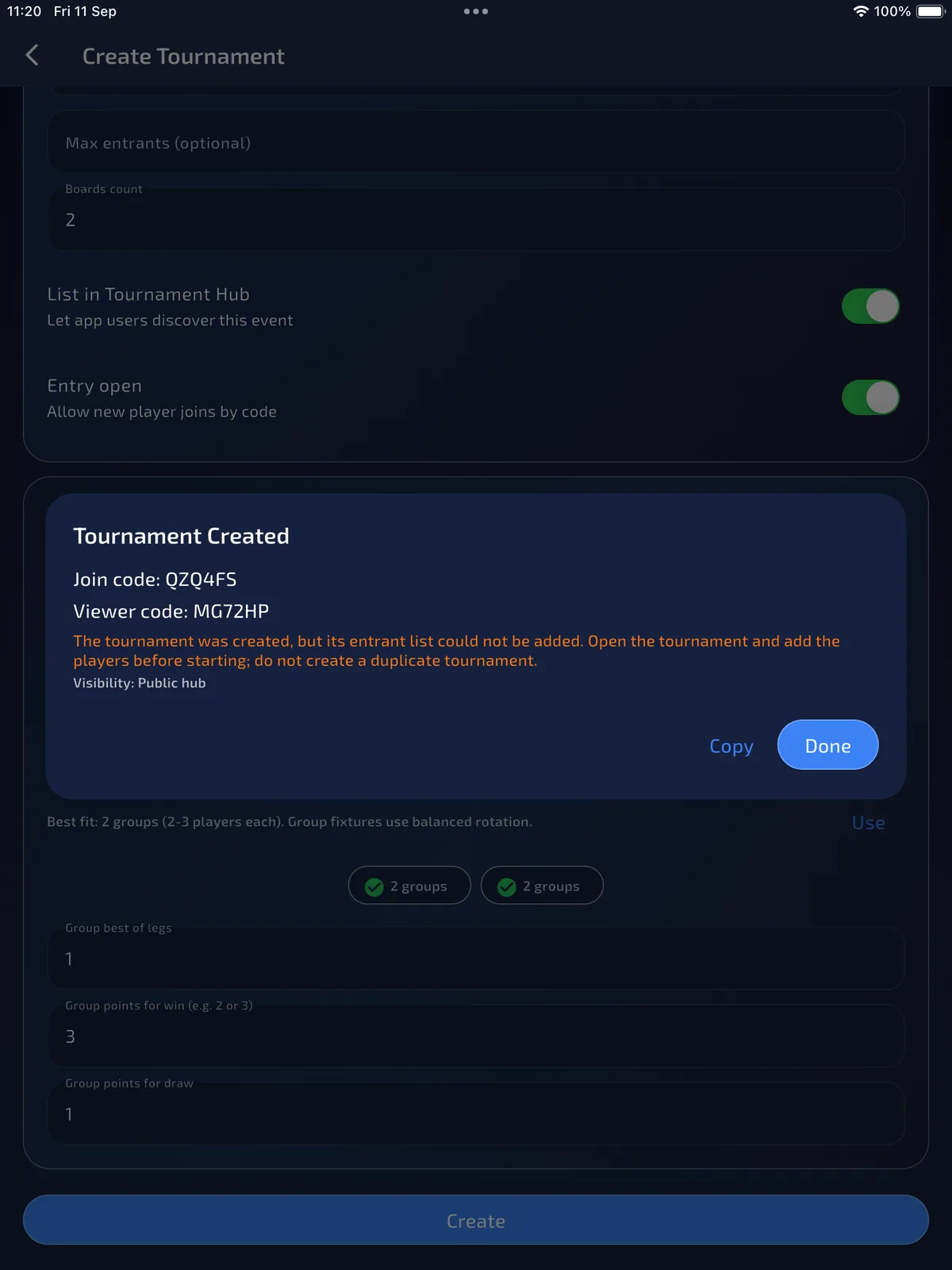
Tournament Created returns a join code and a viewer code. They change for every event; do not reuse a code from a screenshot. Copy them for the door or the group chat, then tap Done and open the new event from My.
This capture also shows an orange recovery warning: the optional name list was not added. Do not create a second tournament. Open Entrants on this event and add the players there.
- Copy the join code if players will type it, and the viewer code if you will share a watch link.
- If the dialog warns that the entrant list could not be added, tap Done and recover on Entrants. Do not duplicate the night.
- Open the new event from Tournaments → My.
Watch this step
06 · Join · Discover
A player finds the night on Discover Hub
ResultThe listed event is visible on a player phone with Join.
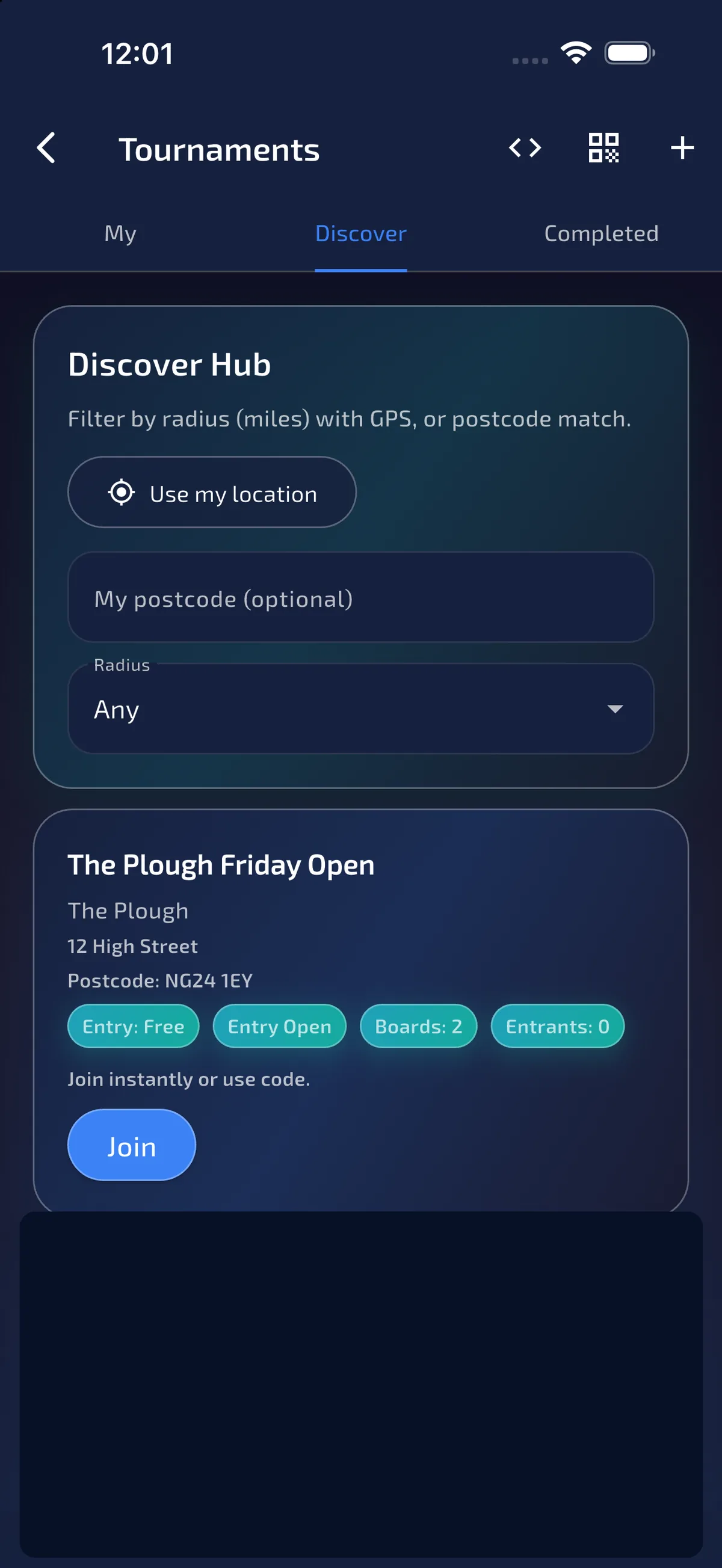
With List in Tournament Hub on, a signed-in player opens Tournaments → Discover. The Plough Friday Open appears with the venue, postcode, free entry, two boards and Join. Players can also use the join code from Manage; this walkthrough uses Discover.
- On the player phone, open Tournaments → Discover.
- Use location or postcode if the list is long.
- Check the venue and that entry is still open, then tap Join.
07 · Join · Confirm
Confirm Join while the event is still draft
ResultThe player account is attached as a player, not as organiser.
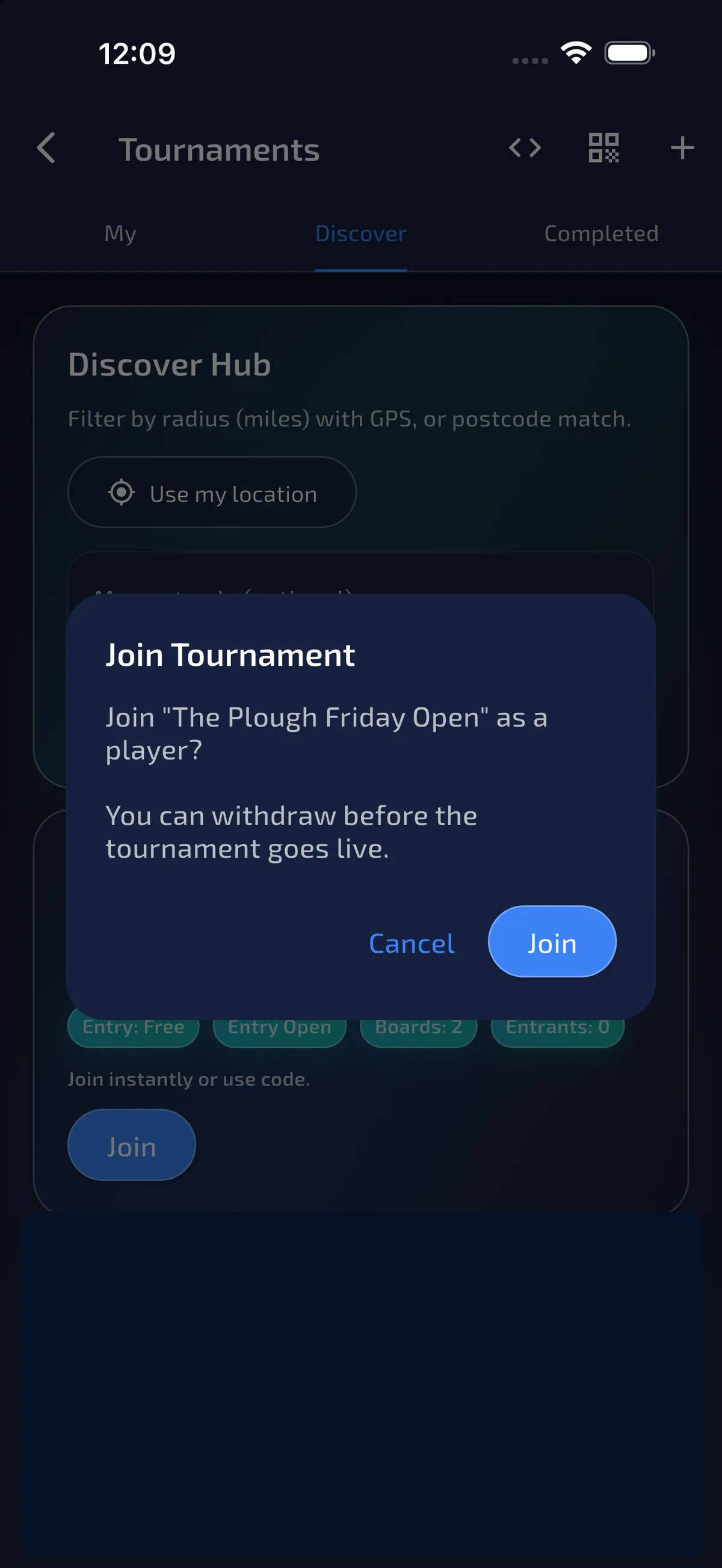
Join Tournament asks to join as a player. The dialog mentions withdraw before the event goes live. This walkthrough does not film a player withdrawing themselves. Check-in, no-show and withdraw are organiser Entrants actions, and only while the event is still draft. After Start Tournament the field is frozen.
- Read the event name in the dialog.
- Tap Join.
- Do not join a second time on another account for the same person.
08 · Join · Overview
The player sees a draft overview, not admin tabs
ResultRole is player. Entrants, Manage and Stats are not on this phone.
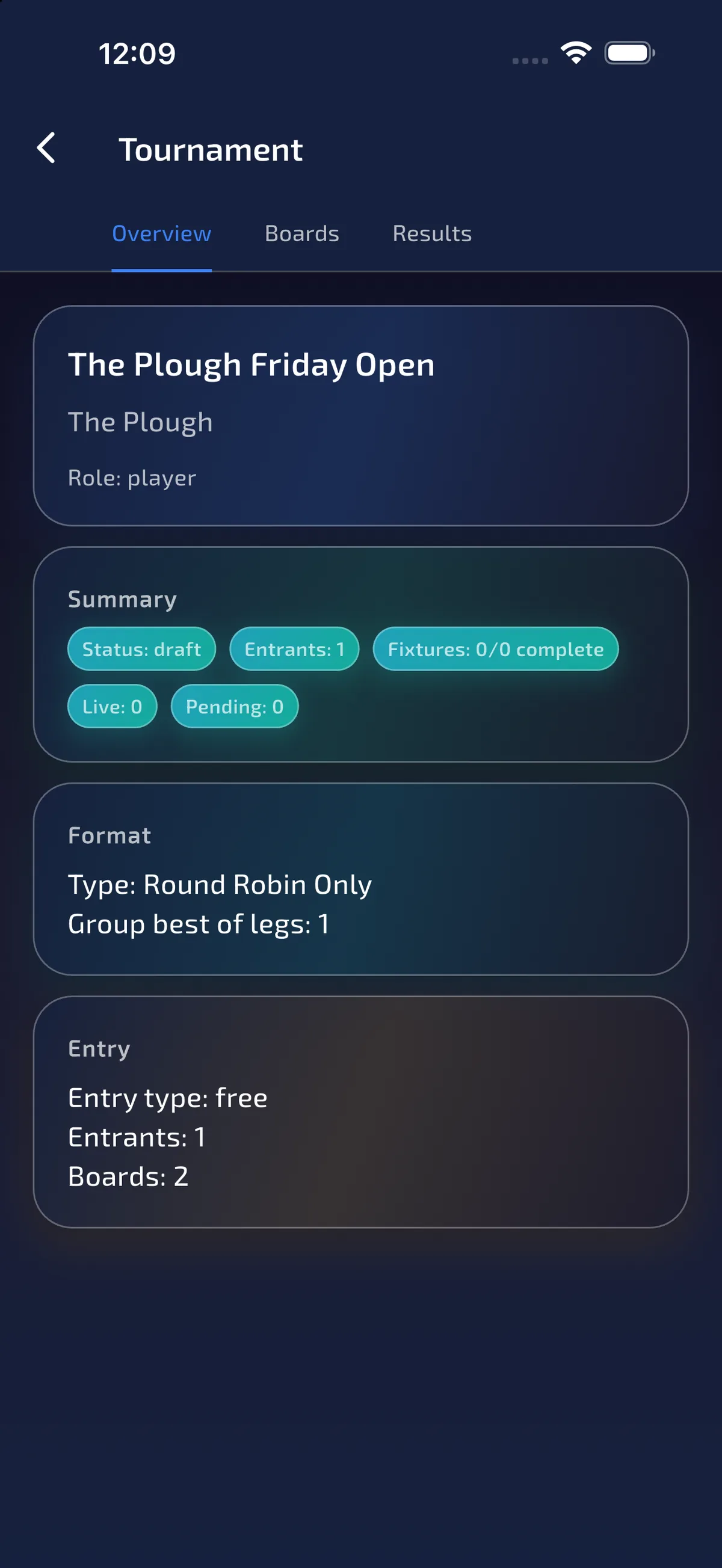
After Join, the player overview shows Role: player, Status: draft and the round-robin format. A joined player does not get organiser tabs and does not become a scorer when the tournament starts. Scoring belongs to a separately paired board-tablet session.
09 · Field · Entrants
Use Discover joins or add existing roster players
ResultEntrants combines self-joined players with people selected from the organiser's existing roster.
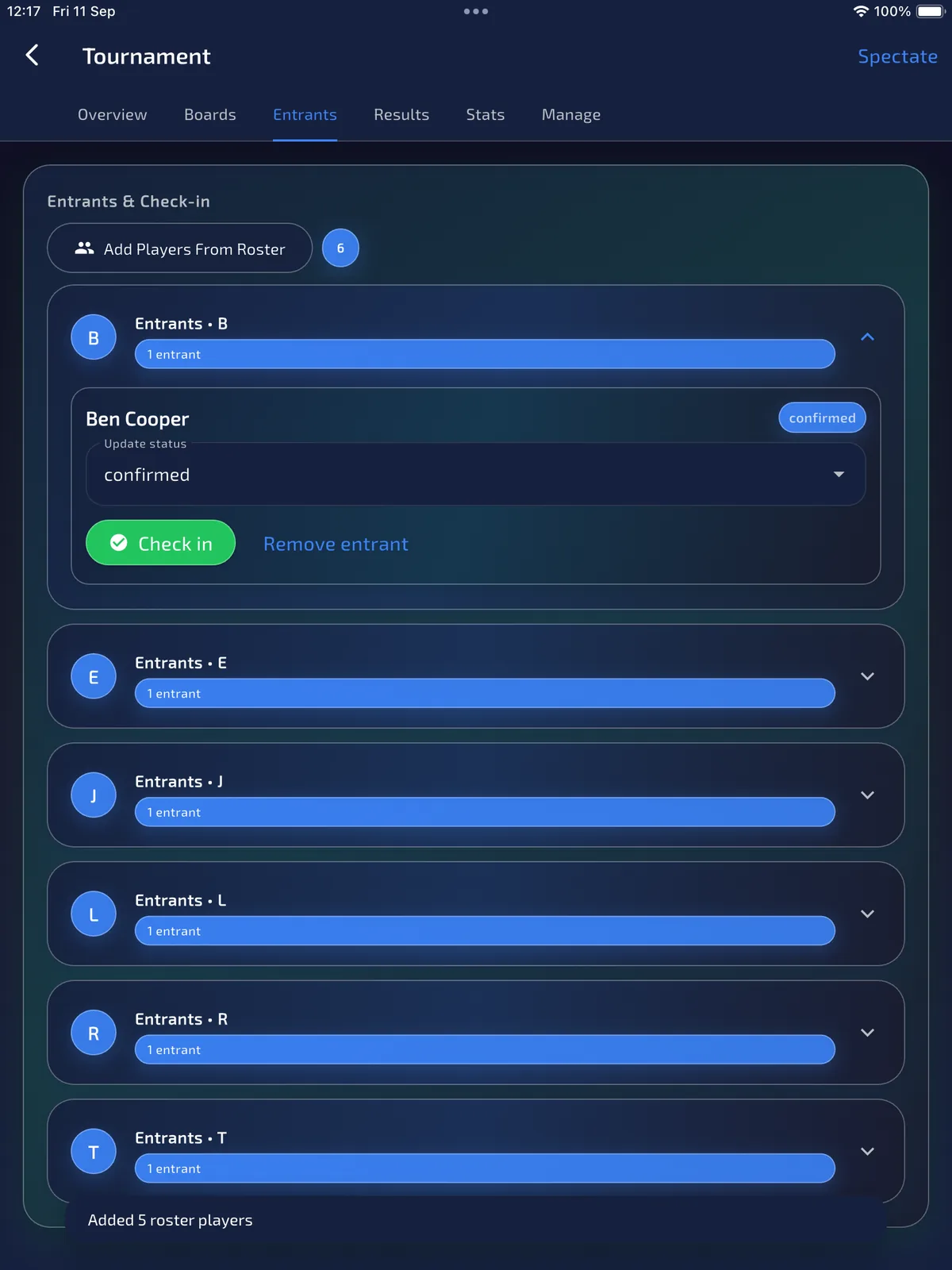
There are two ways to build the field. A signed-in player can find the listed event in Tournaments → Discover and join it themselves while entry is open. Alternatively, the organiser can open Entrants → Add Players From Roster and select people who are already saved in that organiser's ProDart360 roster.
You do not need to add a Discover player again from the roster. This capture shows both routes together: Emma Baker joined through Discover, while five other players were selected from the organiser's existing roster. Roster selection adds them to this tournament; it does not mean they joined through Discover.
New entrants begin as confirmed. Whether they joined themselves or were added from the roster, the organiser must still mark each person checked_in, no_show or withdrawn before Start Tournament.
- Open Entrants and check who has already joined through Discover or a join code.
- For anyone already saved in your roster but missing from Entrants, tap Add Players From Roster and select their name.
- Do not select someone who has already joined, and do not add the organiser account unless that person is playing.
- Tap Add and check the snackbar count against the names you ticked.
- Use Remove entrant only if the name should not be on the event at all. No-show keeps the registration and drops them from the group instead.
10 · Field · Check-in
Check in everyone who will play
ResultPlaying names show checked_in. Start later uses this field, not the create-time list.
Each entrant has Check in and an Update status menu. The pills are raw status values: confirmed, checked_in, no_show and withdrawn. Tap Check in on everyone who is present. This capture shows Ben Cooper as checked_in after that tap. Round Robin Only needs at least four checked-in players before Start Tournament will write the structure.
- Open each person who is here and tap Check in.
- Use Update status if you need to move someone already marked.
- Leave anyone still arriving as confirmed only if you will resolve them before Start. Confirmed names block start.
11 · Field · No-show
Mark a no-show before you start
ResultPeople who will not play are out of the group table instead of leaving a hole in the round robin.
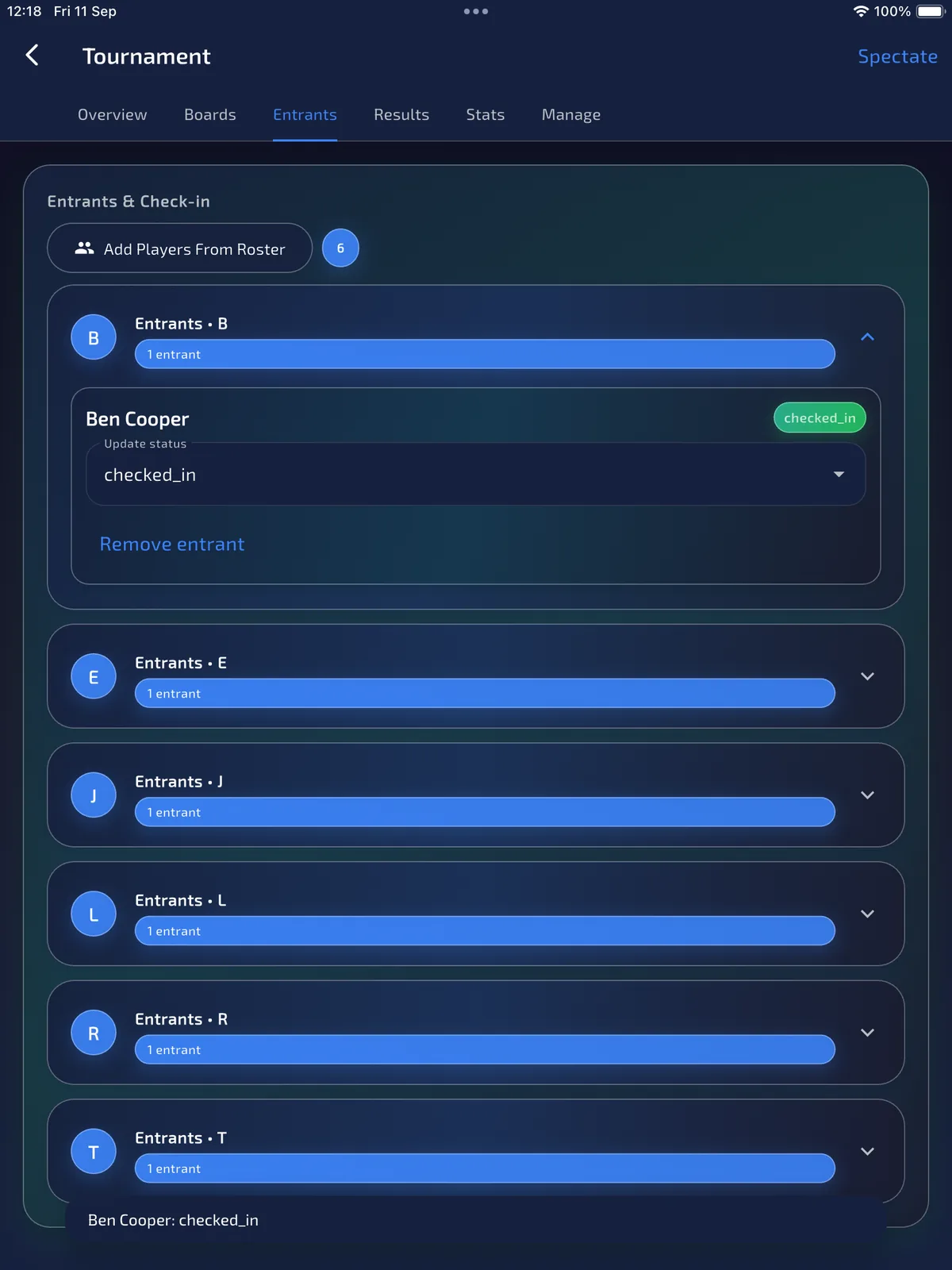
If someone is not coming, open Update status and choose no_show, then confirm Mark No-Show. The dialog states they are removed from group tables and their pairings become byes that award no points. Use this before Start. The same menu includes withdrawn; this walkthrough films no-show, not withdraw.
This night checked in Emma Baker, James Walker, Tom Harris, Ben Cooper and Ryan Clarke, and marked Luke Bennett no-show. That is the field Start Tournament actually used.
- Open the person who will not play.
- Set Update status to no_show.
- Read the confirmation, then tap Mark No-Show.
Check-in, no-show and withdraw are draft-only. Do not plan to change the field after Start Tournament.
12 · Start · Manage
Start from Manage after the field is resolved
ResultYou are on the admin tab that actually starts the night.
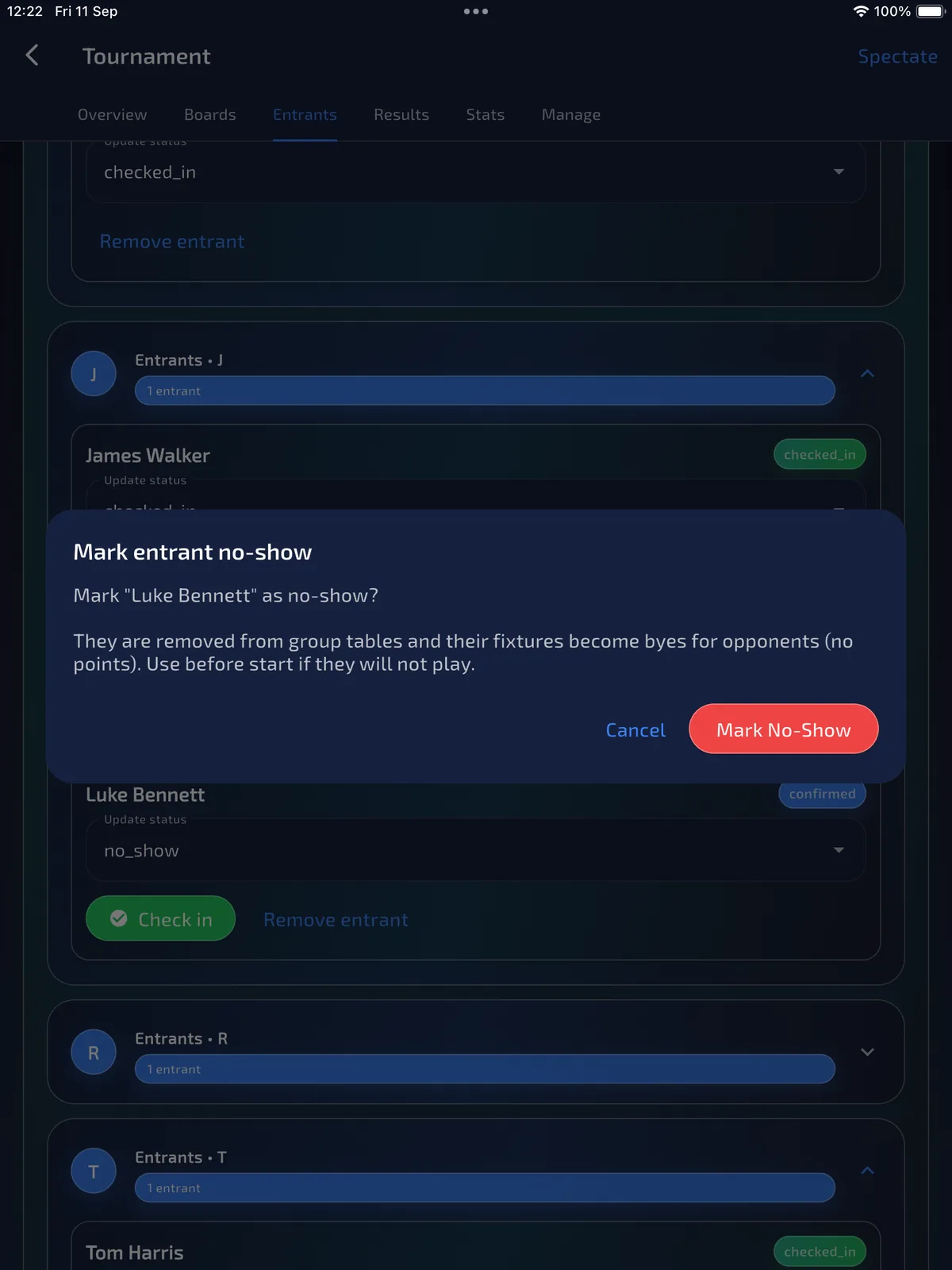
Manage holds the join and viewer codes, Discover & entry switches, and Start Tournament. Send to TV and Create Pairing Code can appear here; this walkthrough does not certify the TV screen or organisation-tablet pairing. When every remaining name is checked_in, no_show or withdrawn, tap Start Tournament.
- Open Manage.
- Check Discover and Entry open only if you still want late joins. Start will freeze the field either way.
- Tap Start Tournament.
13 · Start · Confirm Structure
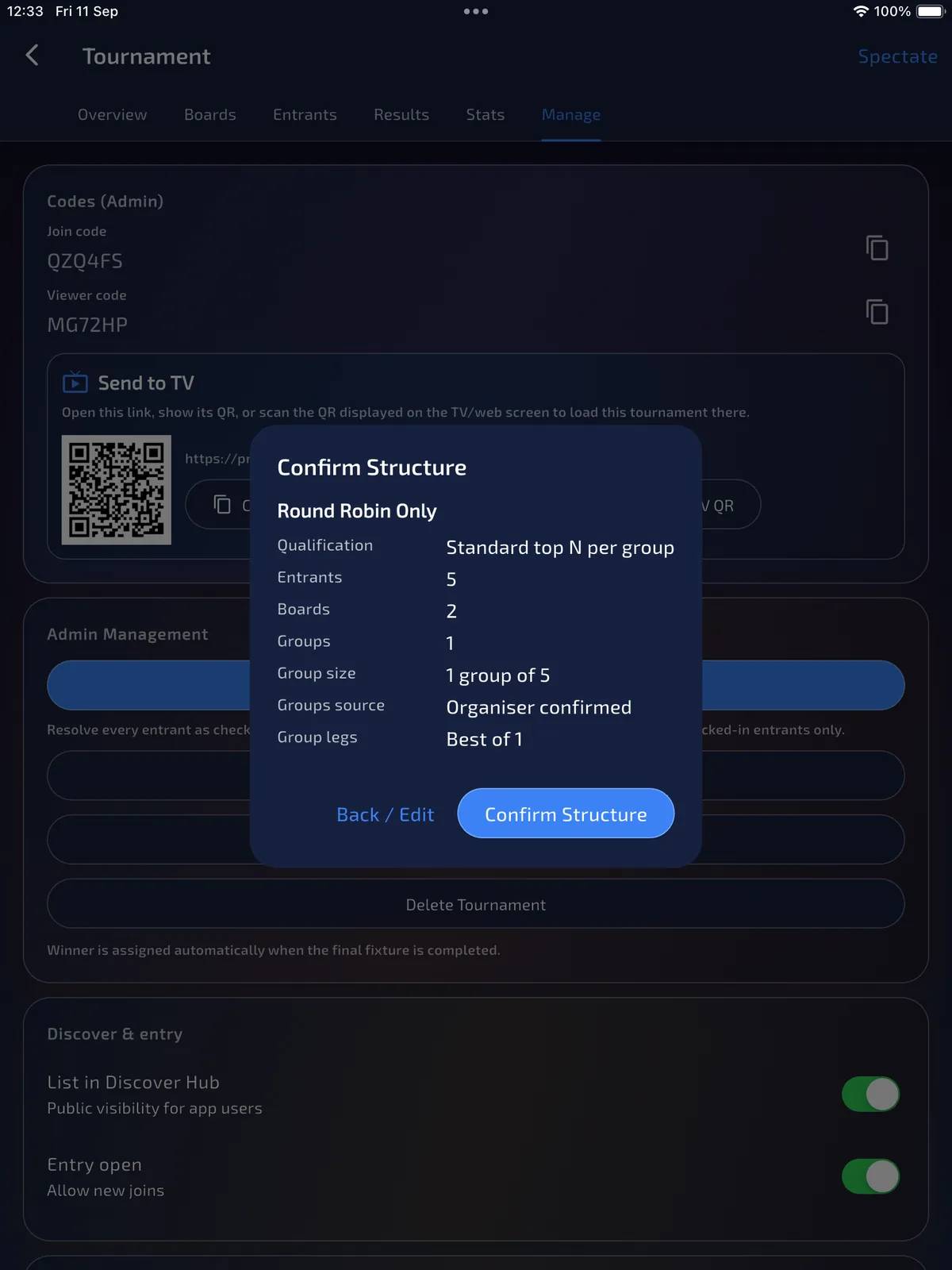
Confirm Structure again from the checked-in field
ResultThe summary matches who is actually playing, not the create-time name list.
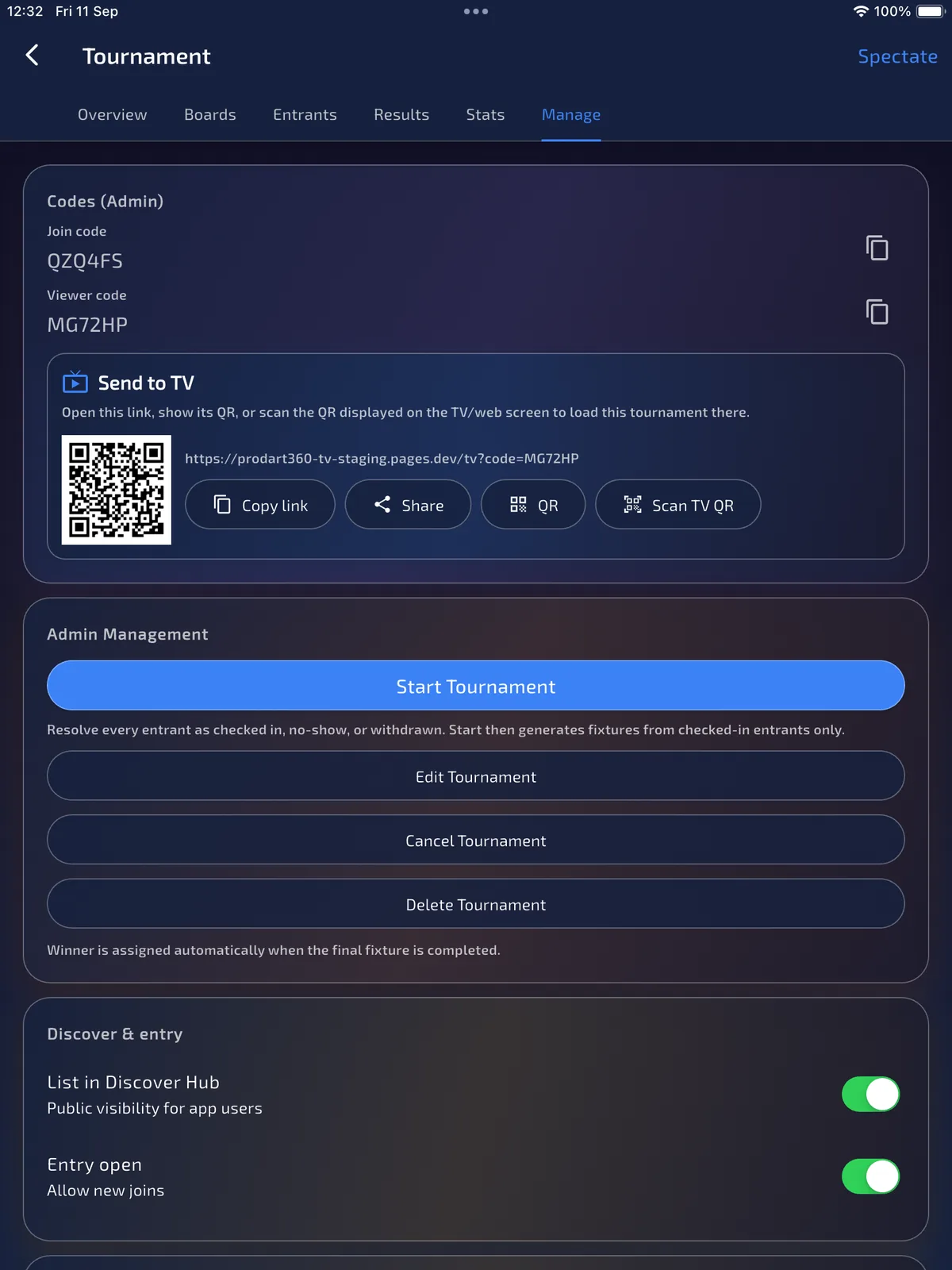
Start shows Confirm Structure a second time. This capture is the one that matters: Round Robin Only, 5 entrants, 2 boards, 1 group of 5, organiser confirmed, best of 1. Luke is already out, so the group is the five checked-in players. Confirming here is still not the fixture write; the next dialog is. Qualification can still read Standard top N per group on this start dialog too. Round Robin Only still does not create a knockout.
- Check Entrants, Groups and Group size against the people you checked in.
- If the group count is wrong, tap Back / Edit and fix it before you continue.
- Tap Confirm Structure.
14 · Start · Start Tournament
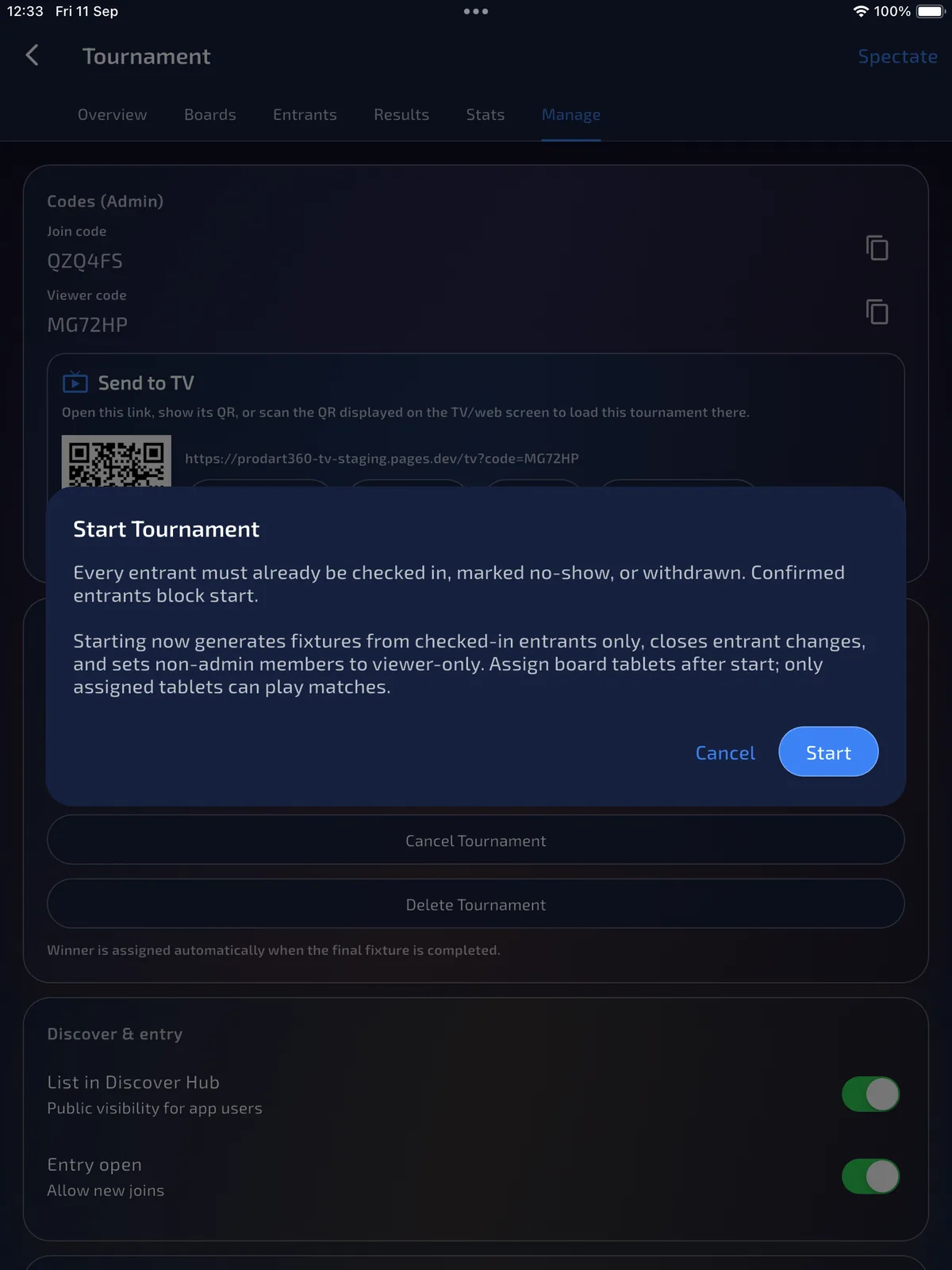
Start Tournament writes the fixtures and freezes the field
ResultThe round robin exists. Joined entrants remain players. Only paired board tablets can play matches.
The Start Tournament warning is the contract. Every remaining name must already be checked in, marked no-show or withdrawn; confirmed names block start. Starting generates fixtures from checked-in players only, closes entrant changes, and keeps joined entrants as players. Pair a physical tablet to each active board after start. Player and admin membership do not grant scoring access.
- Read the warning. There is no later Generate Fixtures button to undo a bad field.
- Tap Start only when the checked-in list is the list you want to play.
15 · Run · Overview
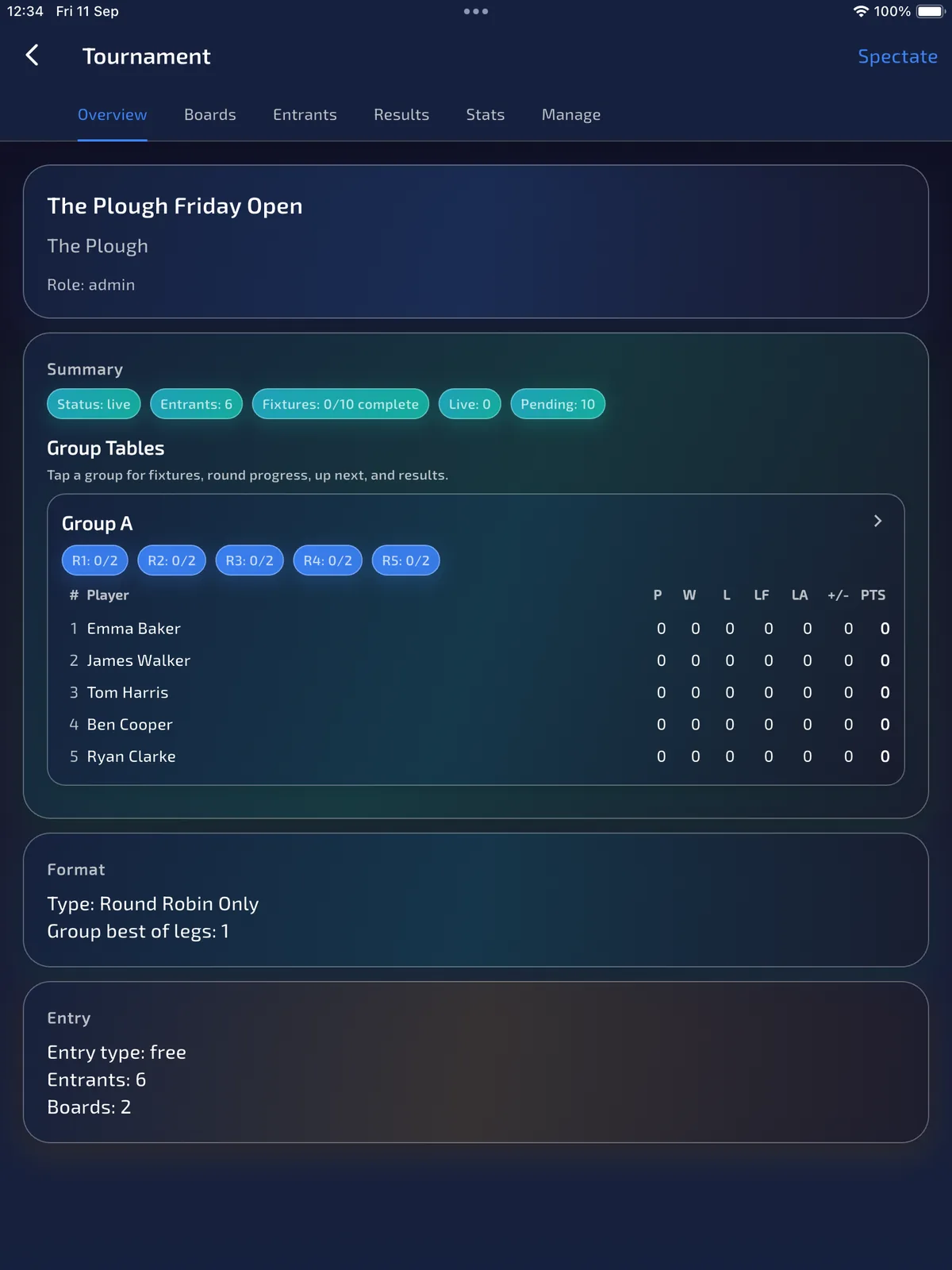
Live overview is the group table, not a bracket
ResultStatus is live. Group A lists the checked-in players. There is no Bracket tab.
After start, Overview shows Status: live, the Group A table and Round Robin Only. This night produced 10 fixtures for 5 players on 2 boards. Luke is not in the table. Entrants still reports 6 because the no-show remains on the event; the group is the 5 who checked in. Round Robin Only does not add Bracket, runner-up or Manual Start Bracket.
16 · Run · Boards
Pair one physical tablet to each active board
ResultEach oche has one active board session. An unpaired board cannot start a match.
Open Boards after Start Tournament. Each board initially shows Tablet: Not paired. Tap Pair board tablet to create a short-lived code and QR, then open Use as Board Tablet on the device at that oche and scan or enter the code. Redeeming the code creates the scoring session for that exact board.
Do not select a player, chalker or organiser account as the scorer. Those are people and memberships; the paired tablet session is the scoring authority. Use Replace board tablet for a device change and Unpair to revoke access immediately.
- Open Boards.
- Tap Pair board tablet on Board 1 and show its QR or code.
- On the physical scoring device, choose Use as Board Tablet and redeem that code.
- Repeat with a different code for every board you will use.
- Check that the organiser board card names the paired device before calling a match.
The former member-assignment screenshot has been removed because that flow is no longer valid. A fresh paired-tablet capture will replace it after the updated staging build is deployed.
17 · Run · Queue
Call the next match from the board queue
ResultUp Next shows who plays, who chalks and which round is waiting.
The organiser can open a board to inspect its queue, edit the chalker and reassign fixtures, but cannot start or resume a game from admin mode. The paired board tablet opens the same board queue with the scoring controls. Auto revalidation: slot conflict reassigned can appear when the same person would chalk and play; that is the app moving the chalker, not a broken queue.
- Open the board that is free.
- Read Up Next, including the chalker name.
- On the paired board tablet, tap the play control when both players are at the oche.
The old queue capture combined admin controls with scoring authority and has been removed. Admin mode manages the queue; paired board-tablet mode starts and resumes games.
18 · Run · Start Game
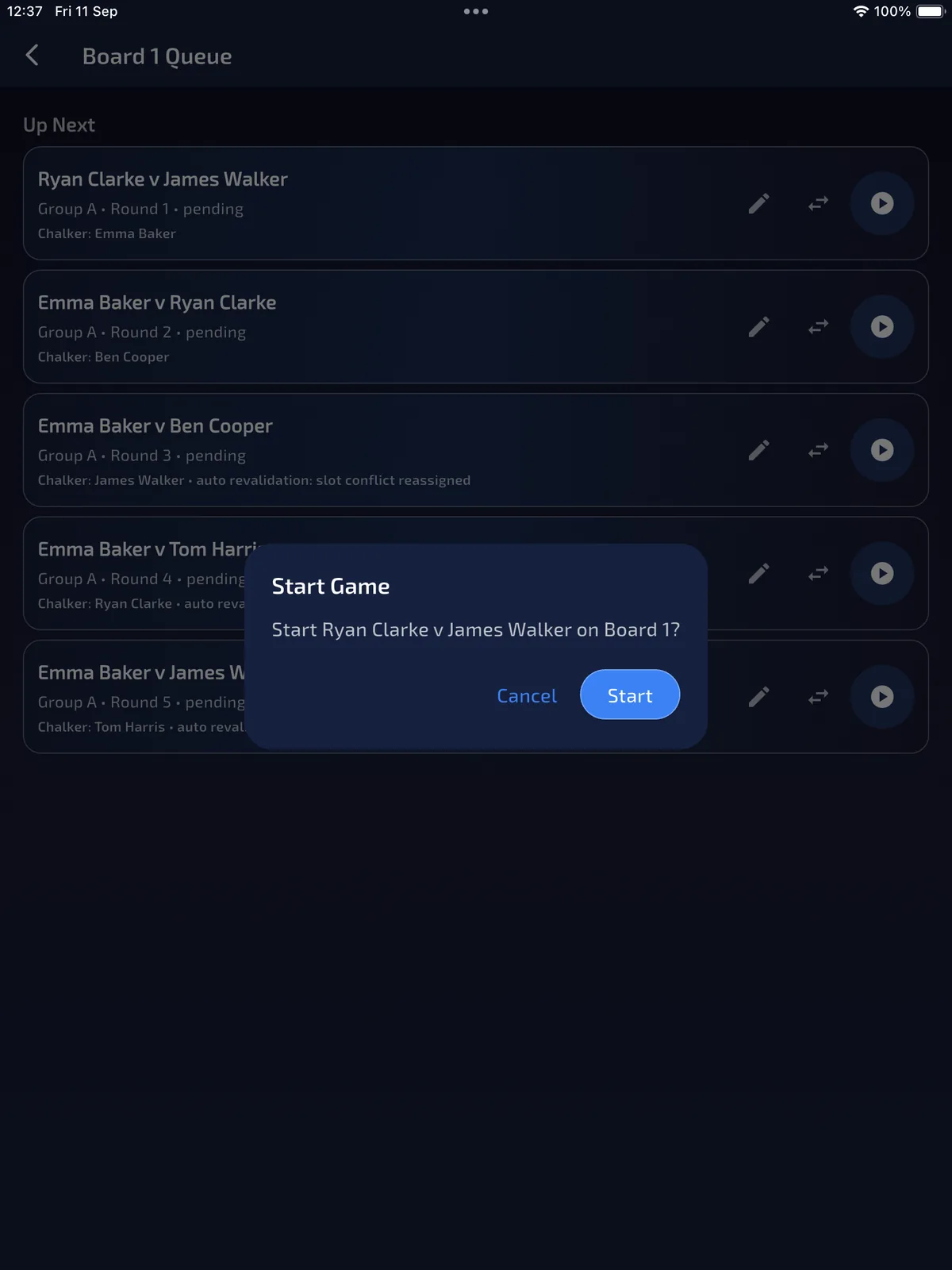
Confirm Start Game on the paired board tablet
ResultThe paired device opens the match. Player and admin views cannot start it.
Start Game asks to start that pairing on this board. Confirm only in the active paired board-tablet session. A joined player or organiser cannot start it from their normal tournament view. The next screen is BULL UP, not the keypad.
- Check the names in the Start Game dialog.
- Tap Start on the paired board tablet.
19 · Run · Bull up
Choose who starts on BULL UP
ResultThe paired tablet names the first thrower before 501 begins.
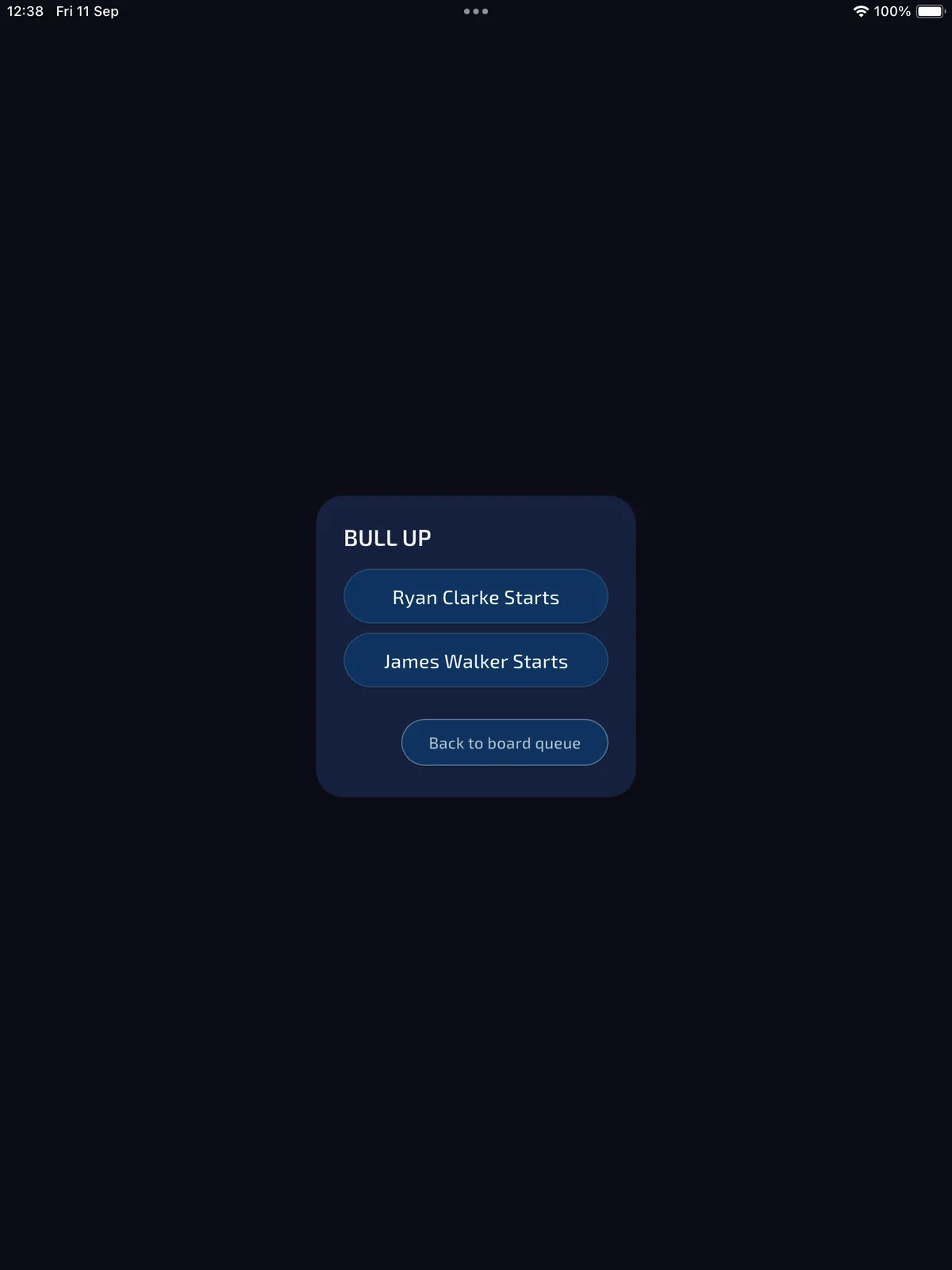
Starting a board-queue match opens BULL UP, not the keypad. This is the expected next screen. Tap the player who won the bull, or Back to board queue if you started the wrong pairing.
- Agree who won the bull at the oche.
- Tap that player’s Starts button.
20 · Run · Scorer
Score the pairing like a normal 501
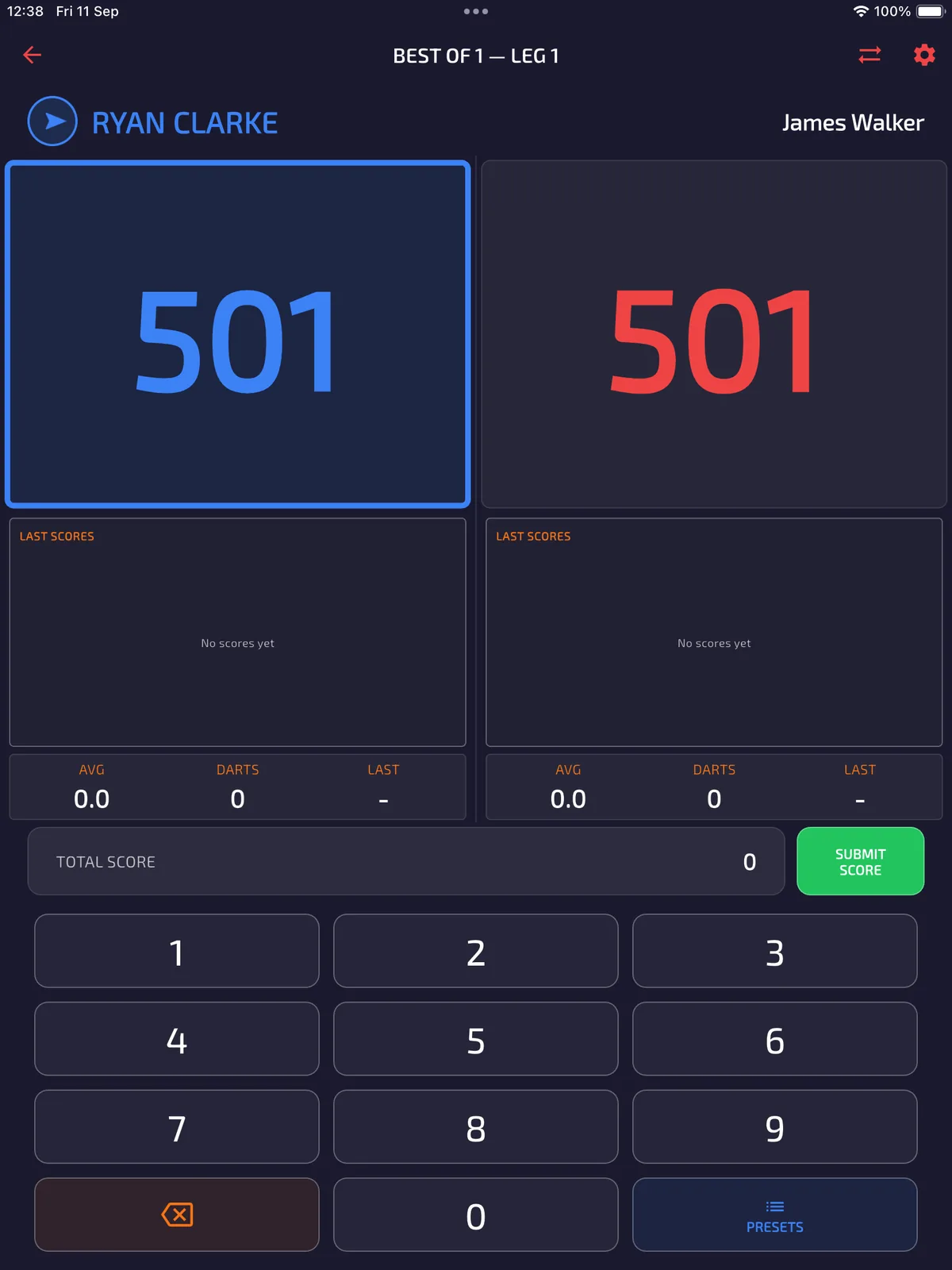
ResultThe board is in BEST OF 1. Visits are entered on this tablet.
After you choose who starts, the board is the same touch scorer as Quick Game. This night is best of 1, so one 501 decides the pairing. Enter visits as thrown. For keypad detail see the scorer guide; this chapter only needs you on the paired tablet with the correct two names.
- Check the two names and that BEST OF 1 is correct.
- Score each visit on this tablet.
- Do not start the same pairing on a second device.
21 · Run · Finish Game
Finish Game writes the tournament result
ResultThe pairing is stored. League Finish Match is not the control on this screen.
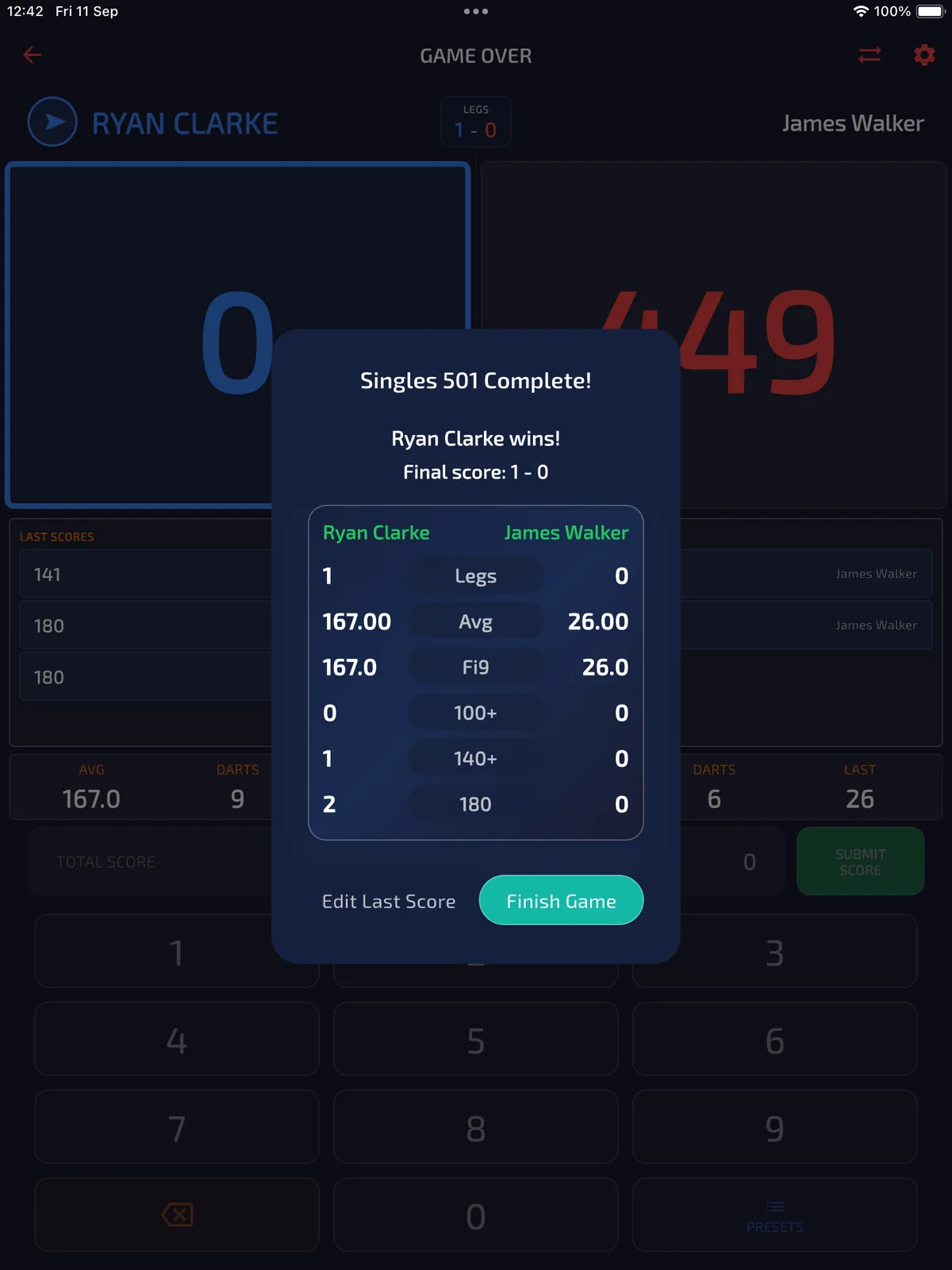
When the last double lands, the scorer shows GAME OVER and Finish Game. This capture is Ryan Clarke 1–0 James Walker. Tap Finish Game to return the result to the tournament. Do not look for Finish Match here; that control belongs to league fixtures.
- Read the winner and the 1–0 score.
- Use Edit Last Score only if a visit is wrong.
- Tap Finish Game.
22 · Follow · Table
The group table moves after Finish Game
ResultPoints, played and round chips update from the stored result.
Overview then shows Ryan Clarke on 3 PTS from the win, James Walker on 0, and Round 1 at 1/2. Entrants can still read 6 while Group A lists 5, because the no-show remains on the event.
The previous capture showed a legacy assigned-board field and has been removed. The result and table behaviour remain as described.
23 · Follow · Results
Results lists played games and automatic byes
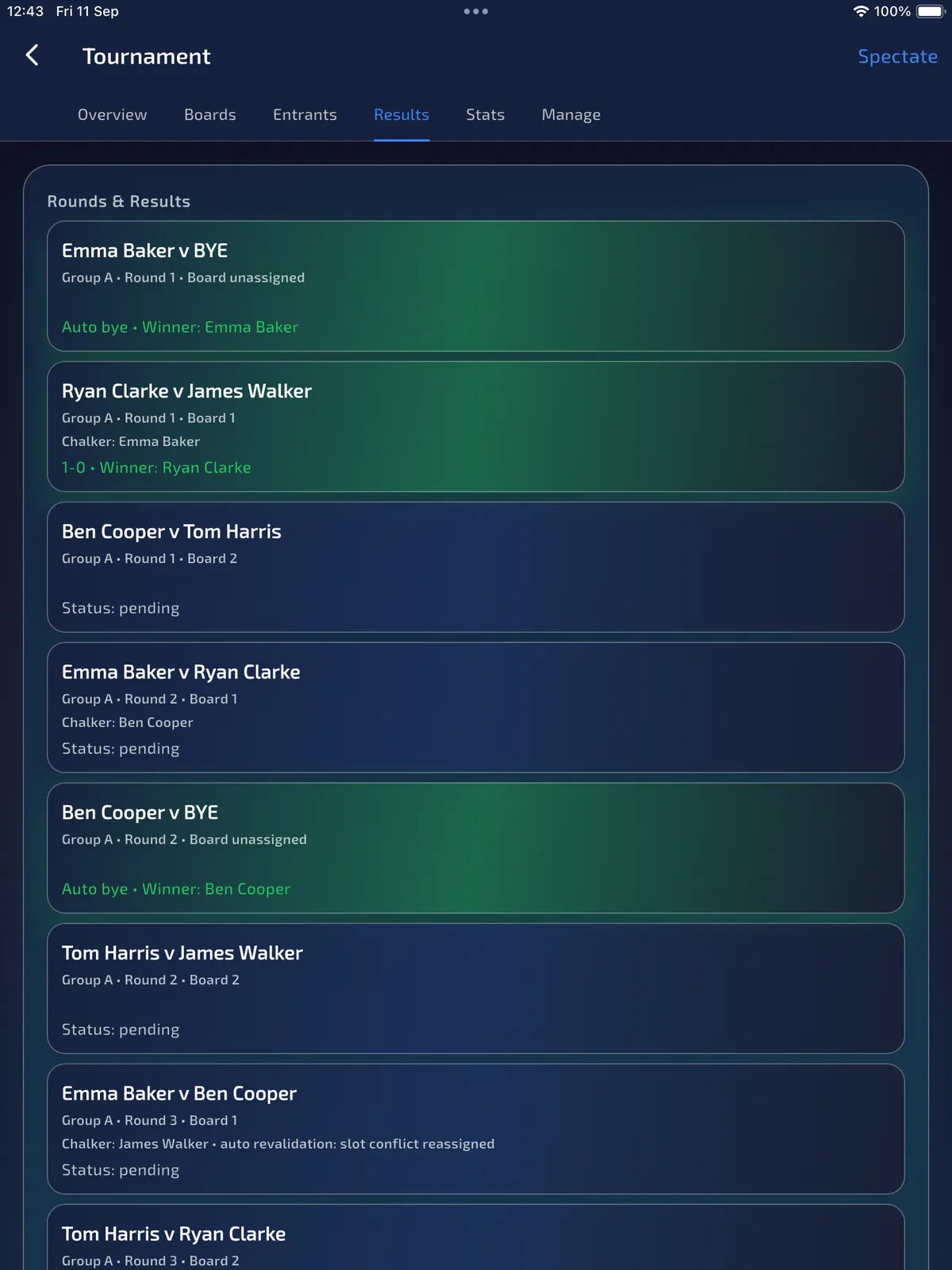
ResultYou can see who won, who is pending, and where an odd field created a bye.
Five players in one round robin produce byes. Results shows Emma Baker v BYE as an auto-bye win, Ryan Clarke beating James Walker 1–0 on Board 1, and later pairings still pending. Ben Cooper also has an auto-bye in Round 2 on this screen. An auto-bye win on Results does not mean that player already has table points: Emma is still 0 played / 0 PTS on Overview in the same capture. Confirm the table before you assume points.
24 · Follow · Player
A joined entrant stays a player
ResultThe player phone follows Group A with Overview, Boards and Results, without scoring controls.
After start, Emma Baker remains Role: player. The tabs are Overview, Boards and Results; there is no Manage, Entrants or Stats. Her account can follow the event but cannot start, resume or score a fixture.
The legacy screenshot showing the obsolete tournament scoring role has been removed and must not be reused.
25 · Follow · Player boards
The player Boards tab is for following the event
ResultPlayers can inspect board activity but do not receive Start or Resume controls.
A normal player phone can inspect the board list and current activity. It is not a scoring tablet. To operate an oche, the physical device must enter Use as Board Tablet and redeem the organiser’s code for that board.
The old player-board capture represented the removed member-assignment flow and has been withdrawn.
26 · Follow · Stats
Stats are scoring totals from finished games
ResultAverages from completed pairings are visible to the organiser. Export stays on this tab.
Stats → Overall lists points scored, darts and averages from finished games. It is not the group table. After the first pairing, Ryan Clarke and James Walker are the rows that exist. Export is on this tab when your build offers it. Knockout, runner-up and bracket reports are not part of Round Robin Only.
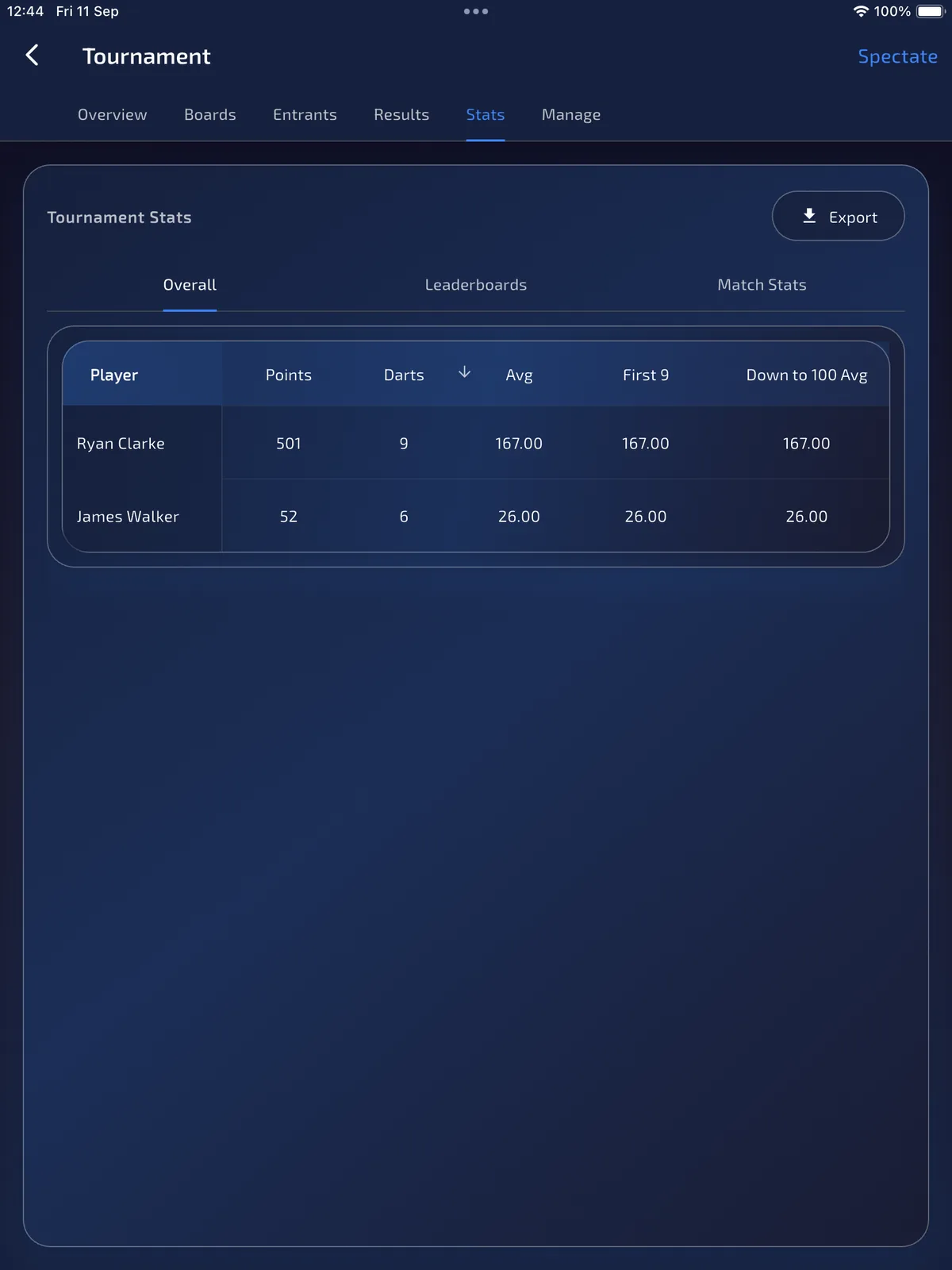
Keep calling pairings from the paired board queues until every non-bye fixture has Finish Game. Check Overview and Results together when the field is an odd number; an auto-bye win on Results does not mean that player already has table points. For keypad detail, finishing darts and visit corrections, use the scorer guide.
Groups-to-knockout, knockout draws and Send to TV are outside this Round Robin Only walkthrough. If Start is blocked by a confirmed name, return to Entrants before you start and check them in, mark no-show or withdraw. Remove entrant deletes the registration; no-show keeps the record and drops them from the group. For setup problems, keep the app data and contact support with your build and the step that failed.